Independent product-engineering prototype inspired by public Notability workflows. Not affiliated with Notability or Ginger Labs.
Context without clutter
Students can already write on a PDF, add a sticky note, or create another page in Notability, but that doesn’t come without a massive tradeoff. Writing eventually obscures the source, large notes cover what they explain, and separate pages disconnect an explanation from it's actual point of reference.
I kept finding, more or less, the same request in public Notability discussions(links attached below). One student using digitized law books said sticky notes covered too much text and wanted them to collapse into a small marker. Another wanted to distribute lecture explanations throughout a textbook without making its pages messy. More recent feedback described collapsible sticky notes as a way to keep comments and reminders close without cluttering the document.
Those requests do not prove how common the problem is, but they express a consistent job:
I would love to attach substantial context to an exact part of a document, reveal it when I need it, and collapse it without losing where it belongs.
That became the thesis for Anchor.
Some of the feedback I found: collapsible notes for digitized books, collapsible textbook annotations, and keeping explanations on the page without clutter.
What I built
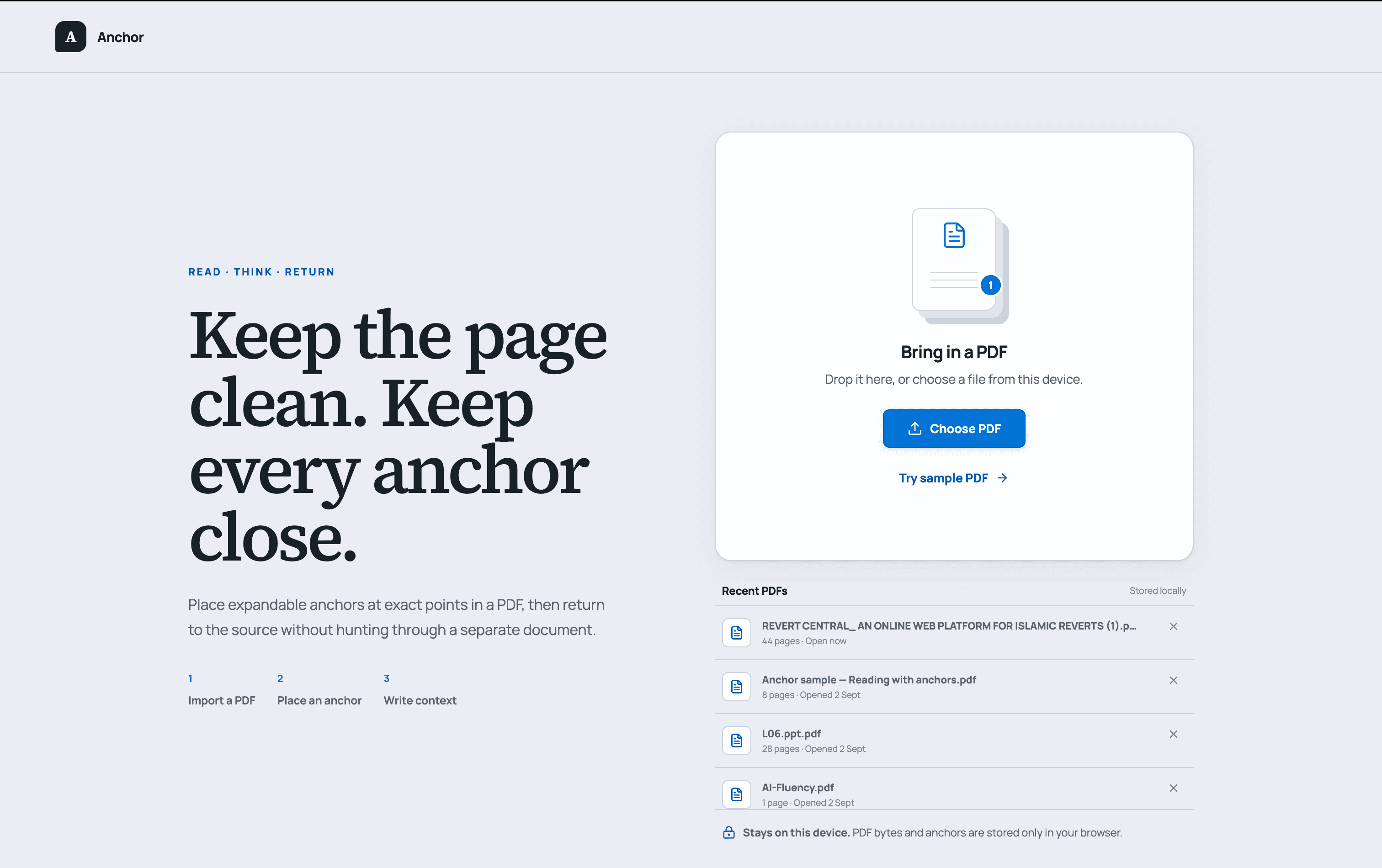
Anchor begins with uploading a PDF. A user can drag in a file up to 75 MB, choose one from their device, or try a sample document. The browser validates and parses it locally before opening a multi-page reader.
The scope of the core interaction is small:
- Select Add anchor.
- Choose an exact point on a PDF page.
- Add an optional title and a longer explanation in the side panel.
- Collapse the panel back into a numbered marker.
- Reopen the anchor from the page or navigator.
Anchors can be edited, searched, repositioned, deleted, undone, and redone. Identical PDFs restore their existing anchors and recent documents can be reopened from the landing page or removed from local storage.
The UI is simply designed by intention, as it follows the simple and quiet qualities of Notability Web. The goal is for the feature to feel natural as a user reads and navigates through pages without recreating the clutter problem I mentioned earlier.
The architecture behind an anchor
- The application uses React and strict TypeScript with PDF.js for worker-backed rendering.
- Redux Toolkit owns the serializable editor state:
- the current/active document
- anchors
- save status
- Tool Kit
- zoom
- rotation
- navigation target
- undo & redo history
- IndexedDB stores PDFs and anchors inbetween local sessions
- PDF.js proxy objects, observers, page measurements, and transient pointer state stay close to the rendering components instead of entering global state.
The most important architectural decision and probably the most complex is the coordinate model. Let’s break it down.
Imagine placing a pin on a paper map. Anchor saves where the pin sits on the map itself, instead of where the map happens to appear on your desk. You can move, rotate, or enlarge the map, and the pin still belongs to the same location. The application simply recalculates where to draw it on the screen.
A marker may look like two screen pixels, but screen pixels only describe one temporary rendering. They change when the page zooms, rotates, resizes, scrolls, or remounts. Anchor therefore persists only pageNumber, pdfX, and pdfY.
During placement, the browser point is translated into page-local coordinates and passed to PDF.js with viewport.convertToPdfPoint(localX, localY). During rendering, the stored point is projected back with viewport.convertToViewportPoint(pdfX, pdfY).
Zoom level, DOM rectangles, scroll offsets, and marker-centering adjustments are never stored. They remain derived rendering state. This single invariant is what lets the interaction survive every change in the viewport.
The problems that made it interesting
A virtualized page may not exist yet. Long PDFs render only visible pages plus a small overscan window. That helps browser performance, but it means a marker on page 70 may have no DOM element when the user selects it. So in order to have our cake and eat it, navigation happens in two stages:
- scroll to the page’s stable shell and wait for the page and marker to mount
- focus and reveal the marker.
Autosave can race with interaction. Anchor text saves after a short debounce, but users can switch markers or close the panel faster than that delay. The editor flushes pending work at interaction boundaries, and persistence operations run through a promise queue so an older write cannot finish after a newer one.
A local document needs a stable identity. Filenames are not reliable because what happens if two files share the same name? And what happens if you rename a file? The browser computes a SHA-256 fingerprint from the exact PDF bytes. We use that as the document ID, allowing byte-identical re-uploads and recent-document restoration to resolve to the same local record.
What I learned
Save the anchor relative to the document instead of the screen. As I mentioned in the architectural breakdown, PDF coordinates stay consistent when the viewport changes. Unfortuntely, screen pixels do not. Once that distinction was clear, zoom, rotation, and resizing became different renderings of the same stored point, while dragging just updates that point to a new PDF location.
Store information only for as long as it needs to exist. Durable document and anchor data lives in IndexedDB while the serializable editor state lives in Redux. Rendering functions remain inside components and all AI review sessions are temporary. Keeping those boundaries explicit made cleanup, restoration, and failure handling much easier to handle. Classic seperation of concerns.
Always plan for obvious edge cases. Not every user will upload the "perfect" PDF, so I made sure to cover areas that I believe are most likely to occur, such as password protected and corrupt PDFs.
Removing a feature can be a stronger product decision than completing it. Check My Understanding worked, but it did not make much sense and quite frankly wasn't worth the complexity. Review My Anchors is a much better product fit because it begins with material the user already decided was important and preserves a route back to the source. More on that below.
Review My Anchors: keeping AI secondary
I initially built a feature called Check My Understanding. It compared a user’s annotation with highlighted PDF text using AI reasoning. It was technically feasible, but didn't make much sense for the product. If I was going to add AI, it had to strenghten Anchor's position + fit within what already exists in Notability.
Notability already offers summaries, quizzes, flashcards, fill-in-the-blank exercises, explanations, and Chat with Your Note through Notability Learn, so building another generic AI feature would not make anchors any better.
The better question was: once a student marked what matters, how can those anchors help them review?
That's when I came up with the "Review My Anchors" feature.
Review My Anchors lets the user select meaningful anchors, generates one open ended question per anchor, hides the original text, and reveals the student’s note on request. Essentially, it tests the user on the additional context they wrote.
They can select Go to anchors, that returns the user to the exact PDF location. This responds to separate feedback asking to be questioned on selected material and to jump from a study question back to its source.
Only the selected anchor text and page number are sent to the server. The PDF, coordinates, unselected anchors, and earlier sessions are not sent. The API uses structured output and runtime validation to reject invented IDs, missing questions, duplicate questions, and malformed responses.
The AI does not grade answers, create decks, track scores, or decide whether the student is correct. It asks a focused question, then gets out of the way.
Limitations and Trials
I focused the test suite on the parts I expected to break first: opening real PDFs, keeping anchors in place through zoom and rotation, restoring local data, navigating to pages that had been unmounted, and preserving keyboard and focus behaviour. I also tested the AI boundary to ensure every generated question remained connected to the correct anchor.
For the browser tests, I used actual PDFs to recreate the full experience: upload a document, place and edit an anchor, collapse it, change the document view, navigate away, return to it, and confirm that everything survives a reload. I also added an 80-page document to observe how quickly the first page appears, how many canvases remain mounted, and how long it takes to reach a distant anchor.
I deliberately kept Anchor lean. It’s not meant to recreate everything Notability already offers, just to extract a small section and expand on a user problem. There are no accounts, cloud sync, handwriting tools, or collaborative editing. Documents stored in the browser disappear if that browser’s cookies are deleted and AI review requires an internet connection.
Those are the limitations, but accepting them allowed me to stay focused on what started this experiment in the first place.
The need to attach substantial context to an exact part of a document, reveal it when its needed, and collapse it without losing where it belongs.
- Live prototype: anchors.salimcantcode.com
- 90-second demo: Collapsible Sticky Notes Demo
- Source code: github.com/SalimCantCode/Anchored-Context-Notes
Notability is a registered trademark of Ginger Labs, Inc. This prototype is independent, uses original/open assets, and is not affiliated with or endorsed by Notability or Ginger Labs.